Browser-based tool · Free core workflow

Free Color Palette Generator from Image

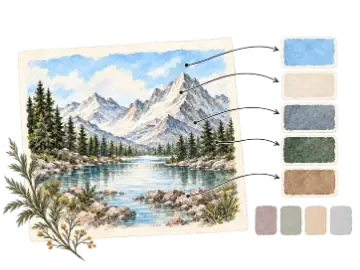
Use this color palette generator to extract the dominant colors from a reference image. Choose 5, 8, or 12 colors, set a custom 2–24-color palette, copy HEX values, or download a palette PNG.

Use Free Color Palette Generator

Private image processing Your reference stays in this browser

Loading this tool…

About Color Palette Generator

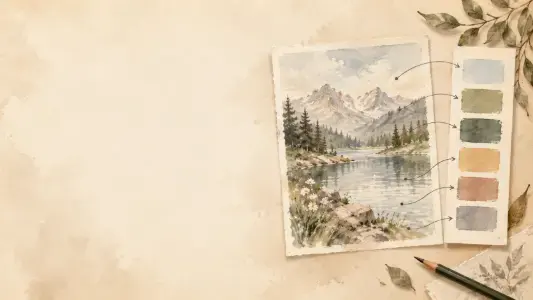
Use this color palette generator from image to find a compact set of dominant swatches for drawing, painting, illustration, or craft planning. Choose 5, 8, or 12 colors, set a custom 2–24-color palette, copy the HEX values, and download a labeled palette PNG.

FEATURED INSIGHT01 / 04

What Is a Color Palette Generator from an Image?

A color palette generator from an image reduces a reference to a manageable group of representative colors. It is useful when a photo contains more variation than you want to reproduce: the palette shows which colors carry the overall mood while leaving room for your own material choices.

Foundational Principles
PART 02

Choosing Five, Eight, or Twelve Colors

Start with five colors when you want a restrained study or a simple illustration palette. Eight colors offer more room for lights, midtones, and accents without making the palette too difficult to scan. Twelve colors can help with detailed references, but do not mistake extra swatches for extra accuracy. Changing the count recalculates every color cluster, so existing swatches and percentages may also change.

PART 03

Use Extracted Colors as a Starting Reference

The generated swatches represent sampled screen colors, not guaranteed paint, ink, yarn, or print matches. Test the HEX values in the medium you will use, compare them under the intended lighting, and adjust the final palette when the physical material behaves differently.

PART 04

Private, Browser-Based Image Processing

The reference image is decoded and sampled locally in your browser. Art Grid Maker does not upload the image for palette extraction, and the page can produce a labeled PNG without a server-side image job.

Three useful palette setups

Choose the palette size based on the next decision, then validate the extracted colors in your actual medium.

Plan a simple illustration

5 colors · prioritize the largest coverage swatches

Keeps the visual language compact and easier to control.

Build a painting reference

8 colors · start from the dominant swatches

Preserves a useful range while leaving room for material-specific mixing.

Study a detailed photo

12 colors · check small accent swatches

Retains more local variation without copying every pixel.

Works best with

  • References with a clear subject and readable lighting
  • Digital illustration and painting preparation
  • First-pass color selection for craft and textile projects

Expect extra cleanup with

  • Treating sampled HEX values as exact physical pigment matches
  • Adding colors simply because the source contains noise
  • Using a tiny or heavily compressed image as the only color authority

Key features of Color Palette Generator

Find the colors worth keeping

100% On-Device Browser Processing
Downloadable results
No login required for core workflow
/01

Presets or Custom Count

Choose a restrained, balanced, or detailed preset, or set any palette size from 2 to 24 colors.

/02

Dominant Color Swatches

See representative colors with HEX values and the approximate share of pixels assigned to each extracted cluster.

/03

Copy HEX Values

Copy one swatch or the complete palette for another design, drawing, or coding workflow.

/04

Palette PNG Export

Download a labeled palette image that is easy to keep beside a reference or print as a study aid.

/05

Local Processing

Decode and sample the reference in your browser without uploading the image for conversion.

/06

Coverage Percentages

Compare approximate cluster coverage rather than treating the percentages as exact paint or material mixing ratios.

Choosing a palette size

Use the fewest colors that still support the project decision. A smaller palette often produces a clearer result.

OptionBest for
5 colorsRestrained
8 colorsBalanced
12 colorsDetailed
Custom 2–24Project-specific

How to use Color Palette Generator

1

Load a reference image

Drop a JPG, PNG, GIF, or WebP image into the tool. The reference remains in your browser.

2

Choose the palette size

Start with eight colors, then compare five for simplicity or twelve for additional variation. Each count fully recalculates the palette.

3

Copy or download

Copy individual HEX values, copy the full palette, or download a labeled PNG for your project.

Ways to use Color Palette Generator

01 / CASE

Painting and illustration planning

Turn a photo into a manageable set of colors before mixing paint or building a digital illustration.

02 / CASE

Drawing reference studies

Keep a compact color guide beside a reference while focusing on shape, value, and composition.

03 / CASE

Craft and textile planning

Use the swatches as a first-pass guide for yarn, paper, fabric, or other material selections.

Community Feedback

Reviews & Ratings for Free Color Palette Generator

Community feedback approved for public display.

No ratings recorded yet

5
0
4
0
3
0
2
0
1
0

Color Palette Generator FAQs

Q1.

What is a color palette generator from an image?

A color palette generator from an image samples the reference and groups similar pixels into a small set of representative colors. The result helps you plan a painting, illustration, design, or craft project.

Q2.

How many colors should I extract?

Choose 5 colors for a restrained palette, 8 colors for a balanced starting point, or 12 colors when you need more variation. Use Custom for any count from 2 to 24. More colors are not automatically more useful.

Q3.

Why does the whole palette change when I change the color count?

Each palette size recalculates all color clusters across the image. The tool does not keep the previous swatches and simply add or remove one, so representative colors and coverage percentages may all change.

Q4.

Can I copy HEX color values?

Yes. Click any swatch to copy its HEX value, or use Copy all HEX to copy the complete palette as a list.

Q5.

Does my image leave the browser?

No. The image is decoded and sampled locally in your browser. It is not uploaded to Art Grid Maker for palette extraction.

Q6.

Can I use the palette for drawing or painting?

Yes. Use the extracted swatches as a starting reference, then test colors against your actual paper, paint, yarn, or screen because materials and lighting change the final appearance.

Q7.

Can I download the palette?

Yes. Download the selected palette as a PNG image with HEX labels, or copy the values for use in another app.