
Browser-based tool · Free core workflow

Free Coloring Page Generator

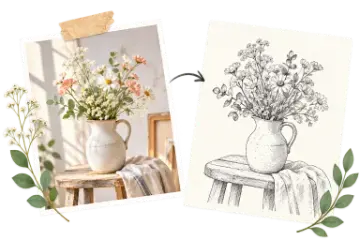
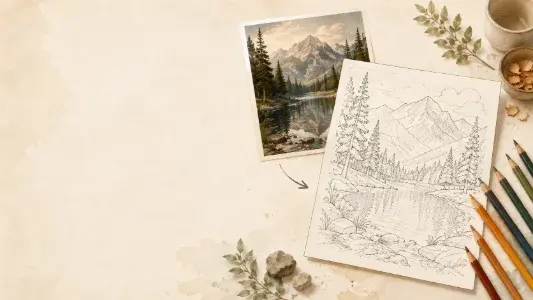
Turn a photo into a printable coloring page with adjustable line detail, smoothing, and thickness. Compare the original and line art, then download the finished page.

Use Free Coloring Page Generator

Loading this tool…

About Free Coloring Page Generator

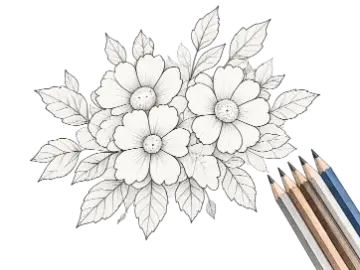
The Coloring Page Generator simplifies a photograph into color regions and draws their boundaries as black-and-white line art. Tune detail, smoothing, line style, and thickness for coloring activities or drawing references.

What Is a Coloring Page Generator?

This coloring page generator groups nearby photo colors into simplified regions, smooths small variations, and draws boundaries where neighboring groups differ. Pets, portraits, vehicles, flowers, buildings, and family photographs can become custom activities. The conversion is not the same as tracing every object by hand: image lighting, background texture, focus, and color separation all influence the resulting lines.

Choosing Bold or Fine-Detail Line Art

Bold mode favors stronger boundaries and works well with a thicker line setting, while Fine Detail uses more color groups to retain additional internal structure. The separate Detail, Smoothing, and Line Thickness controls let you balance open coloring areas against smaller contours. Increase detail only when the extra lines describe the subject; hair, grass, patterned fabric, and noisy backgrounds can otherwise turn into clutter.

How to Get a Cleaner Printable Coloring Page

Choose a sharp photo with a clear subject and visual separation from the background. Test Detail and Smoothing together: higher detail retains more regions, while stronger smoothing removes small isolated changes. Adjust line thickness after the structure looks right, then review the page at its intended print size. Processing stays on the device, but you still need the right to reproduce and distribute the source photograph.

Coloring-page parameter recipes

Choose complexity for the person, coloring tools, and final paper size—not for how detailed the original photo appears on screen.

Young child or broad markers

Bold style · Detail 1–2 · High smoothing · Thick lines

Creates larger open regions with strong boundaries that survive ordinary home printing.

General family activity

Bold style · Detail 3 · Medium smoothing · Medium lines

Keeps recognizable internal features while removing much of the photographic texture.

Detailed adult coloring

Fine Detail · Detail 4–5 · Low smoothing · Thin or Medium lines

Preserves more contours for a larger print, with extra cleanup likely in textured areas.

Works best with

  • Sharp subjects separated from the background
  • Simple lighting with visible silhouette and internal edges
  • Photos cropped close to the subject

Expect extra cleanup with

  • Grass, patterned fabric, or hair dominating the image
  • Motion blur and low-light noise
  • Important pale edges against an equally pale background

Key Features

On-Device Region Boundaries

Simplify colors and draw their boundaries in the browser without uploading the source image.

Bold Kids Mode

Create thicker, simplified outlines and larger coloring areas for crayons and markers.

Fine Detail Mode

Retain more contours for complex subjects and detailed coloring sessions.

Detail, Smoothing, and Thickness

Control region complexity, remove small variations, and choose the final line weight.

Before-and-After Preview

Use the split comparison to see which source details remain in the generated line art.

PNG and Pro PDF Output

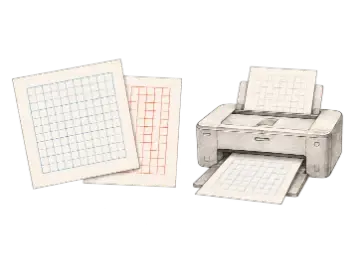
Download a standard PNG or place the processed line art on a Letter/A4 PDF page.

Choosing a coloring-page style

Match line complexity to the subject, coloring tools, print size, and the person who will use the page.

OptionBest for
BoldLarge coloring areas
Fine detailIntricate contours
More smoothingCleaner page
Higher detailMore structure

How to use Free Coloring Page Generator

  1. Step 1

    Start with a readable photo

    Clear lighting and separation between the subject and background help produce cleaner contours.

  2. Step 2

    Tune regions and lines

    Choose Bold or Fine Detail, then balance Detail, Smoothing, and Thickness in the preview.

  3. Step 3

    Check the print preview

    Make sure important outlines remain connected and that noise is not mistaken for useful detail.

When this tool is useful

Children's activities

Create bold pages from pets, vehicles, family photographs, or familiar objects.

Detailed coloring

Preserve more contours for architecture, flowers, and complex subjects.

Drawing reference

Use the simplified edges to study silhouette and dominant internal lines.

Frequently asked questions

How does a coloring page generator turn a photo into line art?
It groups nearby colors, smooths small variations, and draws boundaries between the resulting regions as dark lines on a light background. Detail, smoothing, line style, and thickness control how much structure appears on the page.
What photos work best for coloring pages?
Sharp images with clear lighting, a distinct subject, and separation from the background usually produce the cleanest outlines. Pets, portraits, vehicles, flowers, and architecture can all work well.
What is the difference between Bold and Fine Detail modes?
Bold mode creates thicker simplified contours and larger coloring spaces. Fine Detail keeps more internal edges for intricate subjects, older users, and larger print sizes.
How can I remove background noise from the page?
Start with a cleaner source, reduce Detail, increase Smoothing, and compare the preview at print size. Hair, grass, patterned fabric, and compression artifacts can create many small regions and unnecessary boundaries.
Does Art Grid Maker upload my photo?
No. The photo-to-coloring-page conversion runs locally in the browser. You remain responsible for having permission to reproduce or distribute the source image.
Can I print the generated coloring page?
Yes. Download a PNG or use the Letter/A4 PDF workflow for printing. Review connected outlines, margins, and coloring-space size before producing multiple copies; output detail is limited by the processed source resolution.

Keep your studio workflow in one place

Convert photo to coloring page. When you need the paid workflow, unlock letter and a4 pdf export.