

Browser-based tool · Free core workflow

Free Composition Overlay Tool

Use this composition overlay to place Rule of Thirds, Center Cross, Golden Ratio, an adjustable Golden Spiral with Fibonacci grid, Diagonal Method, or Golden Triangle guides over a reference image, reframe it, and download the result.

Use Free Composition Overlay Tool

Private image processing Your reference stays in this browser

Loading this tool…

About Composition Overlay

Use this composition overlay tool to inspect how a subject, horizon, focal point, and negative space relate to a clear geometric structure. Add one of six guides, move or resize the Golden Spiral and its Fibonacci construction grid, reframe the image, and download the finished PNG without uploading the reference.

FEATURED INSIGHT01 / 04

What Is a Composition Overlay?

A composition overlay is a transparent set of guide lines placed over an image. It can reveal alignments, divisions, directional movement, and visual weight that are difficult to notice while looking at detail. The overlay does not grade the image; it gives you a consistent structure for comparing alternatives.

Foundational Principles
PART 02

Rule of Thirds, Golden Ratio, Spiral, and Center Guides

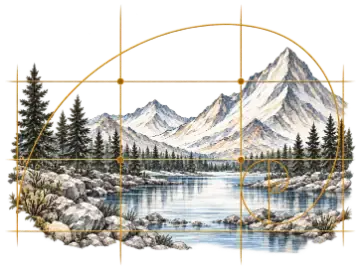
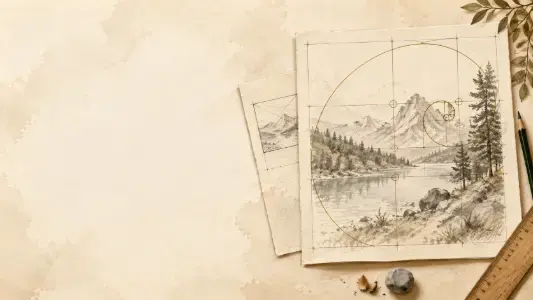
A composition grid can make large spatial relationships easier to compare. A Rule of Thirds overlay divides the image into nine equal regions, while a Golden Ratio overlay uses divisions near 38.2% and 61.8%. Golden Spiral adds a curved route toward a focal area, an optional Fibonacci construction grid, and eight orientations. Move or resize the guide when the focal area does not match the default frame. Center Cross is useful when symmetry, central alignment, or equal visual weight is intentional.

PART 03

Diagonal Method and Golden Triangle

Diagonal Method draws 45-degree lines from each corner, helping you find directional edges and subjects that reinforce movement through the frame. Golden Triangle starts with one major diagonal and adds perpendicular guides from the opposite corners, making it useful for poses, landscapes, and arrangements built around a sloping axis.

PART 04

Use Guides as Questions, Not Rules

A strong composition does not need to place every important edge on a guide. Compare several overlays, then drag, zoom, rotate, or straighten the image beneath the fixed frame to test a real alternative. Lower the opacity or change the line color when the guide hides information you still need to evaluate.

Three composition-check setups

Use one guide to answer one visual question, then hide it mentally and judge whether the composition still supports the intended idea.

Place a focal subject and horizon

Rule of Thirds · 70–85% opacity · contrasting line color

Makes the main intersections and horizontal divisions easy to compare without implying they are mandatory targets.

Check symmetry or central weight

Center Cross · thin line · moderate opacity

Reveals whether the visual center, subject center, and frame center agree or intentionally diverge.

Study movement through the frame

Golden Spiral + Fibonacci construction grid · adjust the image or guide

Aligns the spiral with a focal area while preserving a separate, reversible image crop.

Works best with

  • References with clear major shapes
  • Crop comparisons before drawing or photographing
  • Checking balance after a value or color study

Expect extra cleanup with

  • Treating intersections as automatic focal-point scores
  • Forcing every edge onto a guide
  • Using a high-opacity guide that hides the image you need to judge

Key features of Composition Overlay

Test structure before you commit

100% On-Device Browser Processing
Downloadable results
No login required for core workflow
/01

Six Guide Types

Compare Rule of Thirds, Center Cross, Golden Ratio, Golden Spiral, Diagonal Method, and Golden Triangle.

/02

Correct Wide and Tall Geometry

Keep diagonal and triangle guides mathematically meaningful on landscape, portrait, and square references.

/03

Adjustable Golden Spiral

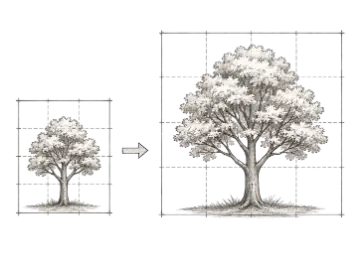
Show its Fibonacci construction grid, rotate or mirror through eight layouts, then move and resize the guide proportionally.

/04

Separate Image and Guide Controls

Choose whether dragging moves the reference or the Golden Spiral, avoiding accidental edits to the wrong layer.

/05

Rotate and Straighten

Turn the image in 90-degree steps or correct a tilted horizon by up to 15 degrees without exposing empty corners.

/06

Local Framed PNG

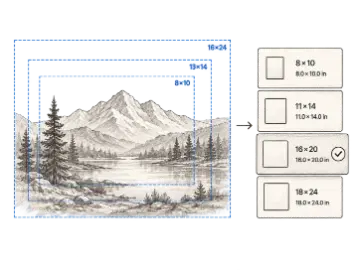
Adjust the guide style and download exactly what appears inside the current frame while the source stays in your browser.

Choosing a composition guide

Start with the visual question you need to answer rather than trying to make every image fit the same template.

OptionBest for
Rule of ThirdsGeneral balance
Center CrossSymmetry and alignment
Golden RatioOff-center divisions
Golden SpiralCurved visual flow
Diagonal MethodDirectional movement
Golden TriangleStrong diagonal axis

How to use Composition Overlay

1

Load a reference image

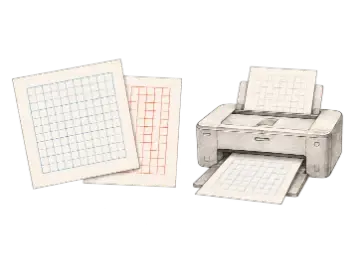
Drop a JPG, PNG, GIF, or WebP into the tool. The image is prepared locally in your browser.

2

Compare and reframe

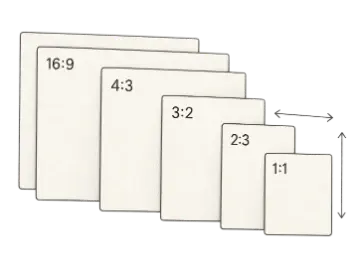
Switch between six guide types, choose a frame ratio, then adjust the image or move and resize the Golden Spiral independently. Use arrow keys for precise movement and hold Shift for larger steps.

3

Adjust and download

Choose a visible line color, opacity, and width, then download the exact framed composition as a PNG.

Ways to use Composition Overlay

01 / CASE

Drawing and painting studies

Check the placement of focal shapes, horizons, and negative space before transferring a reference.

02 / CASE

Photography and cropping

Compare possible crops against thirds, golden divisions, central symmetry, or directional diagonals.

03 / CASE

Illustration planning

Test whether poses, props, and major edges support the intended direction and balance of a scene.

Community Feedback

Reviews & Ratings for Free Composition Overlay Tool

Community feedback approved for public display.

No ratings recorded yet

5
0
4
0
3
0
2
0
1
0

Composition Overlay FAQs

Q1.

What is a composition overlay?

A composition overlay places a simple geometric guide over an image so you can inspect subject placement, balance, movement, and negative space before drawing, painting, photographing, or cropping.

Q2.

Which composition guide should I start with?

Start with Rule of Thirds for a familiar general-purpose check. Use Center Cross for symmetry, Golden Ratio for off-center balance, Golden Spiral for a curved route toward the focal area, or the diagonal guides for directional movement.

Q3.

Does the overlay automatically improve a composition?

No. A guide is a way to ask questions, not a scoring system. Important subjects can sit on, near, or deliberately away from guide lines depending on the visual idea.

Q4.

Can I move, crop, zoom, or rotate the image?

Yes. Choose a frame ratio, drag the image beneath the fixed guide, zoom from 100% to 300%, rotate in 90-degree steps, or straighten by up to 15 degrees. The preview prevents empty areas from entering the frame.

Q5.

Can I move or resize the Golden Spiral?

Yes. Switch the adjustment target from Image to Guide, then drag the spiral, use the arrow keys for precise movement, hold Shift for larger steps, or resize it proportionally with the corner handles and size control. You can also show or hide its Fibonacci construction grid.

Q6.

Does my reference image leave the browser?

No. The image is decoded and annotated locally in your browser. It is not uploaded to Art Grid Maker for composition processing.

Q7.

Can I download the image with the guide?

Yes. Download a PNG containing exactly the current frame, transformed reference image, selected composition guide, line color, opacity, and width.